
How to Import Files and Scan Images from Cloud Services (Google Drive, Dropbox, etc.)?
🔸 Method 1: Import From Scanning Screen
-
Start a New Scan
Tap the
+button on the home screen to start a new scan.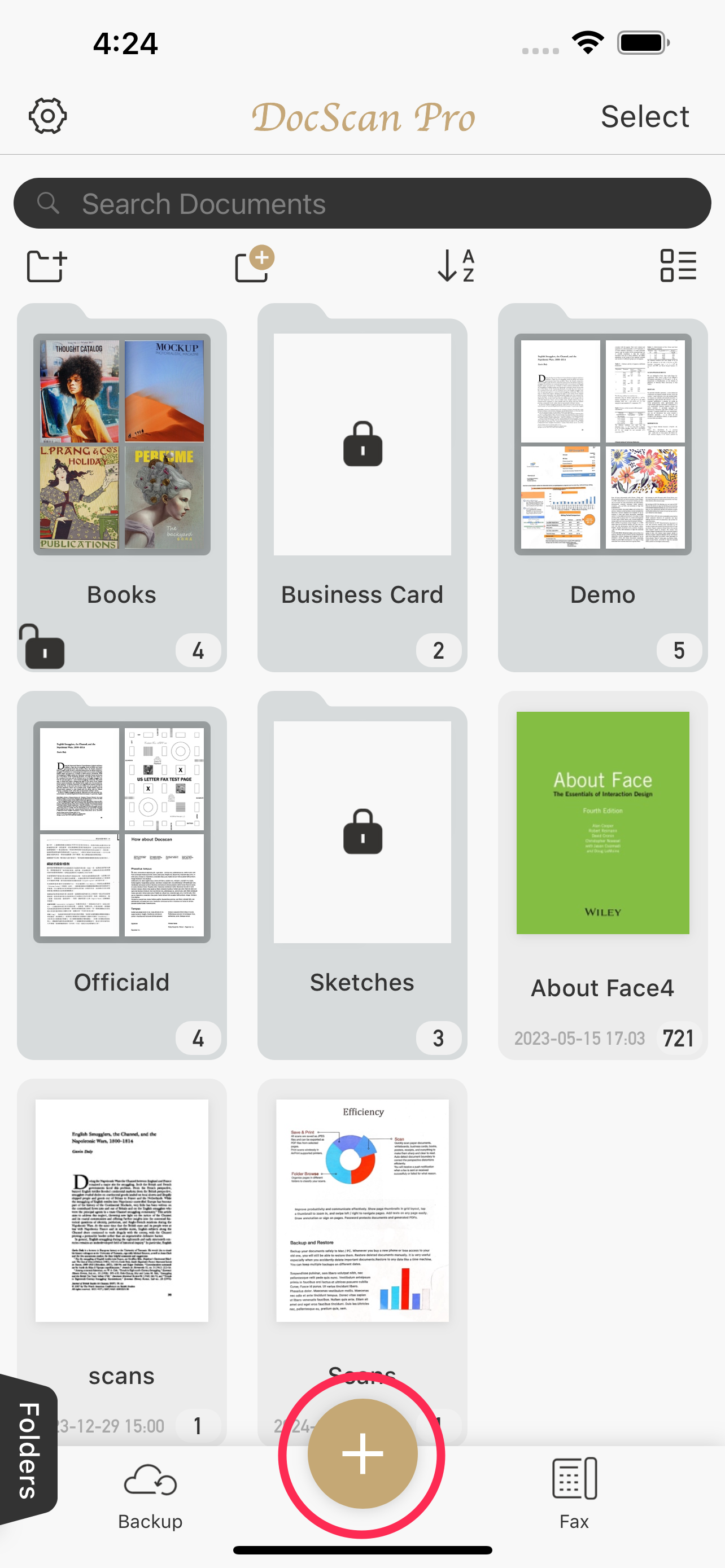
-
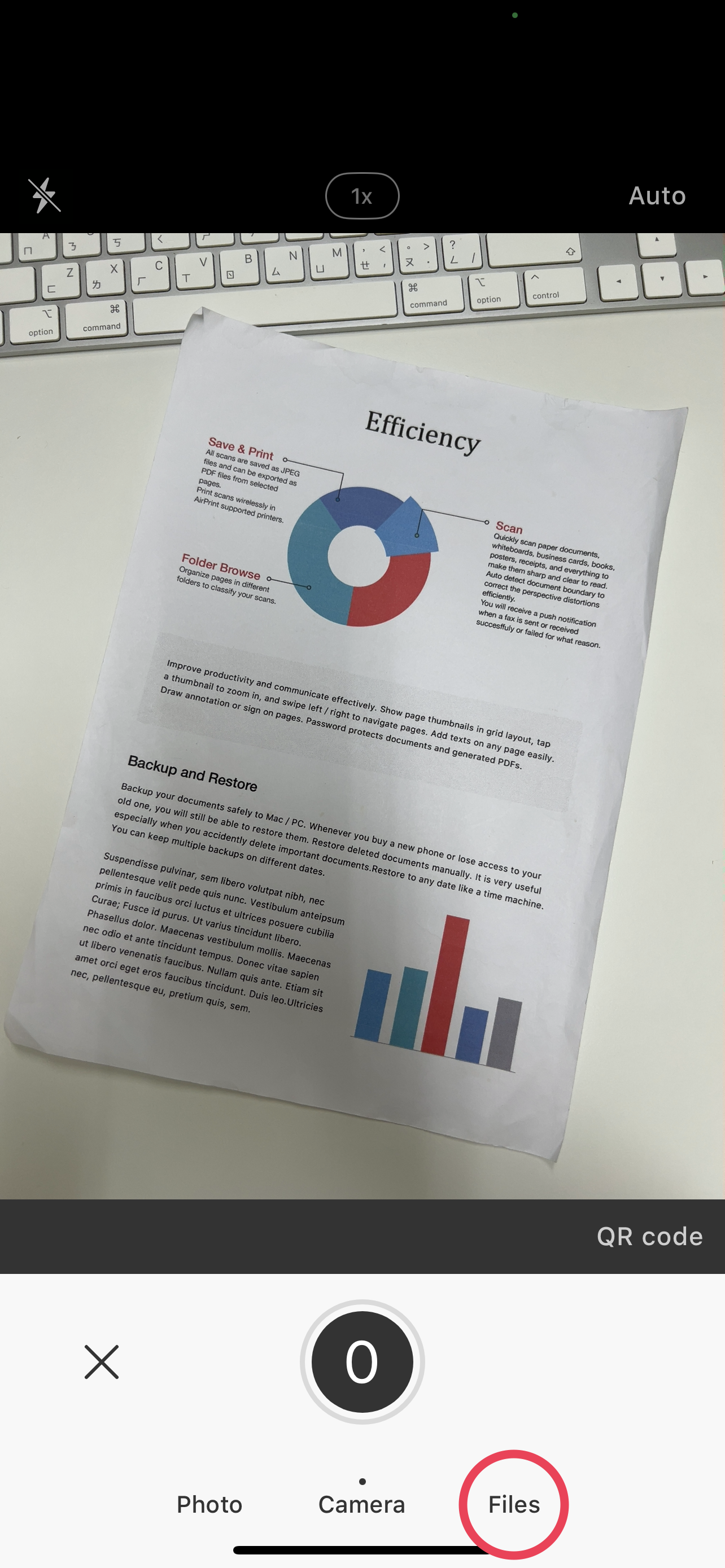
Switch to File Import
Tap the switch icon at the bottom right to change from camera to "Files".
-
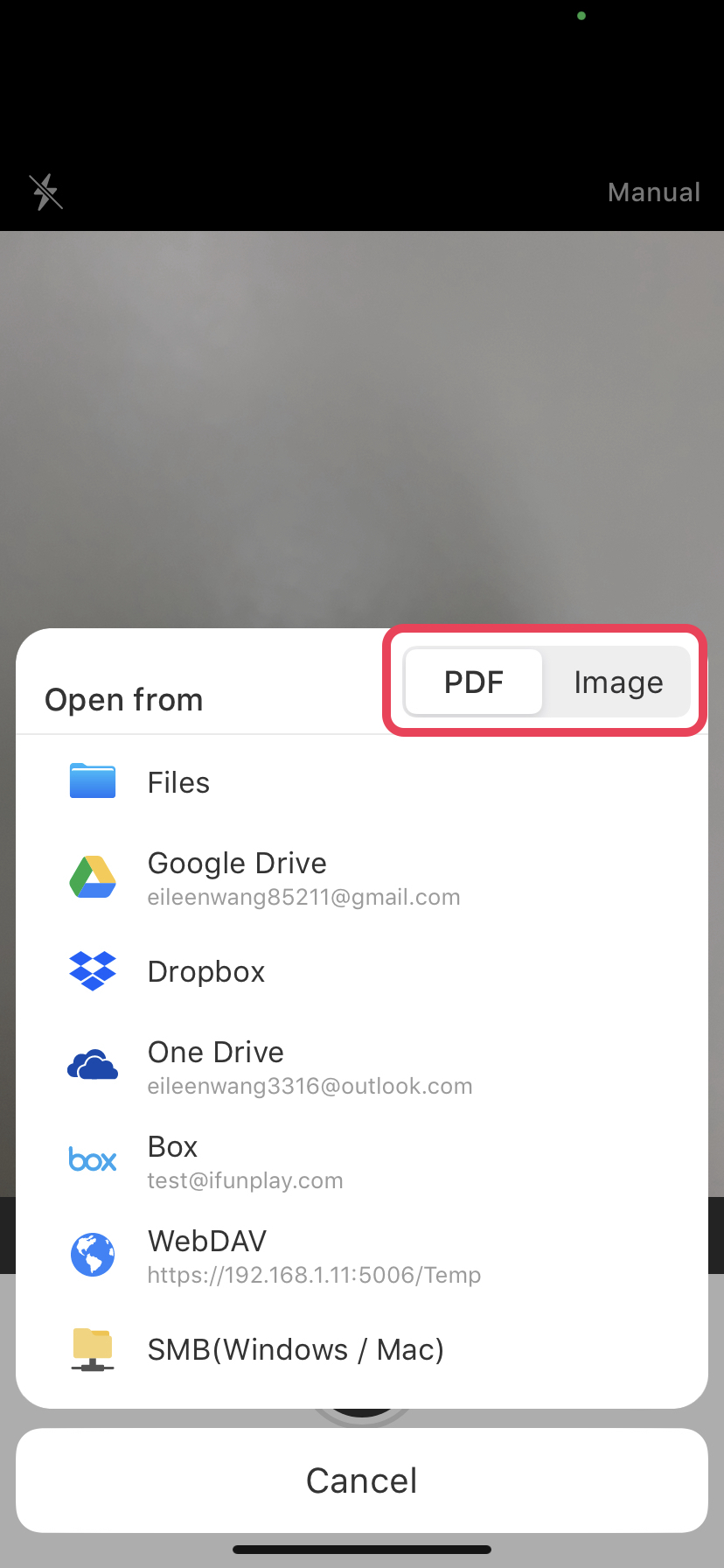
Choose Files Format
Choose whether you want to import PDFs or Images (JPEG, PNG).
-
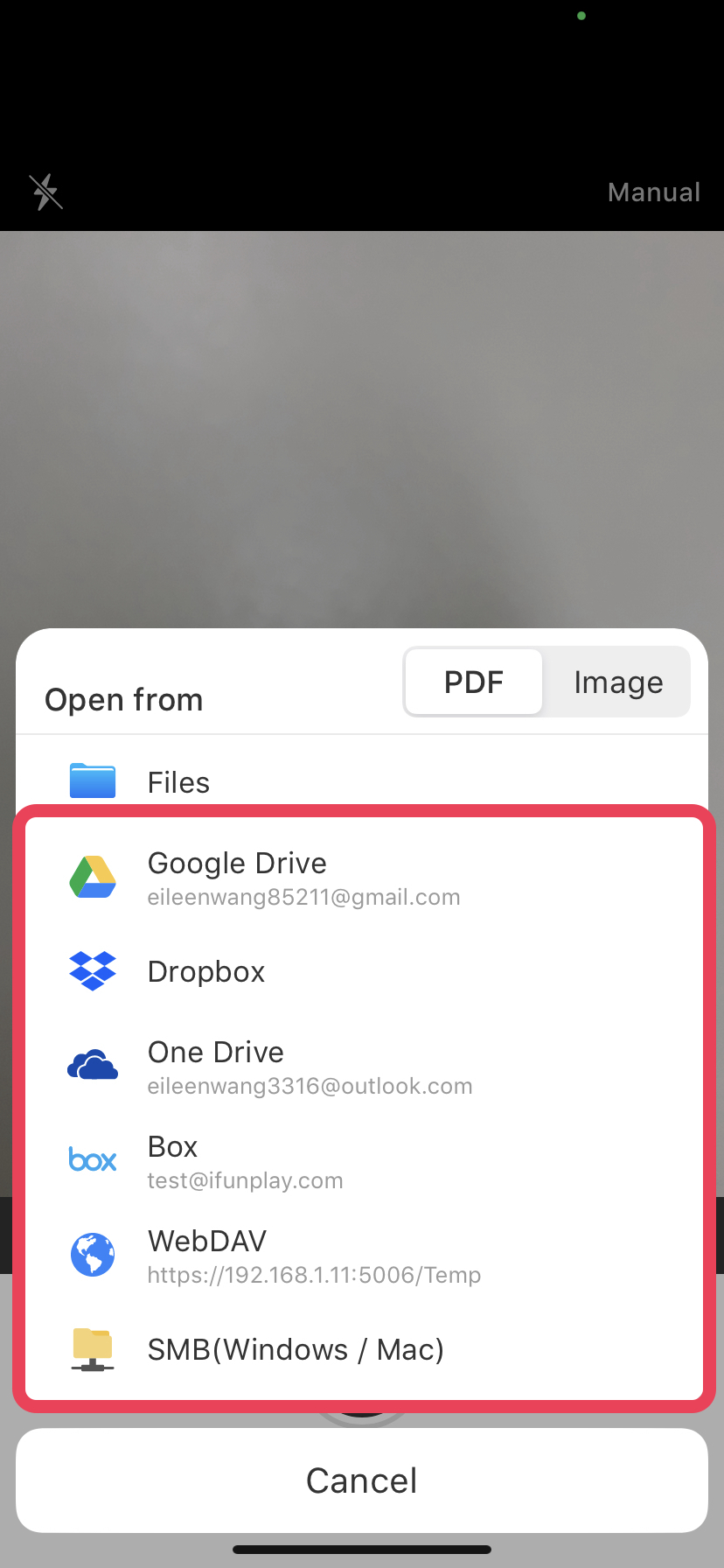
Select Source
Select your preferred cloud storage (Google Drive, OneDrive, Dropbox, Box, WebDAV, SMB, etc.).
-
Pick Your Files
Browse and select the image you want to scan.
-
Edit and Enhance
After importing, you can crop, rotate, adjust aspect ratio, remove shadows, sharpen text, and fine-tune brightness and saturation.
-
Save Your Scan
Tap "Done" at the bottom right to save your scanned image.
🔸 Method 2: Import via Cloud Service Settings
-
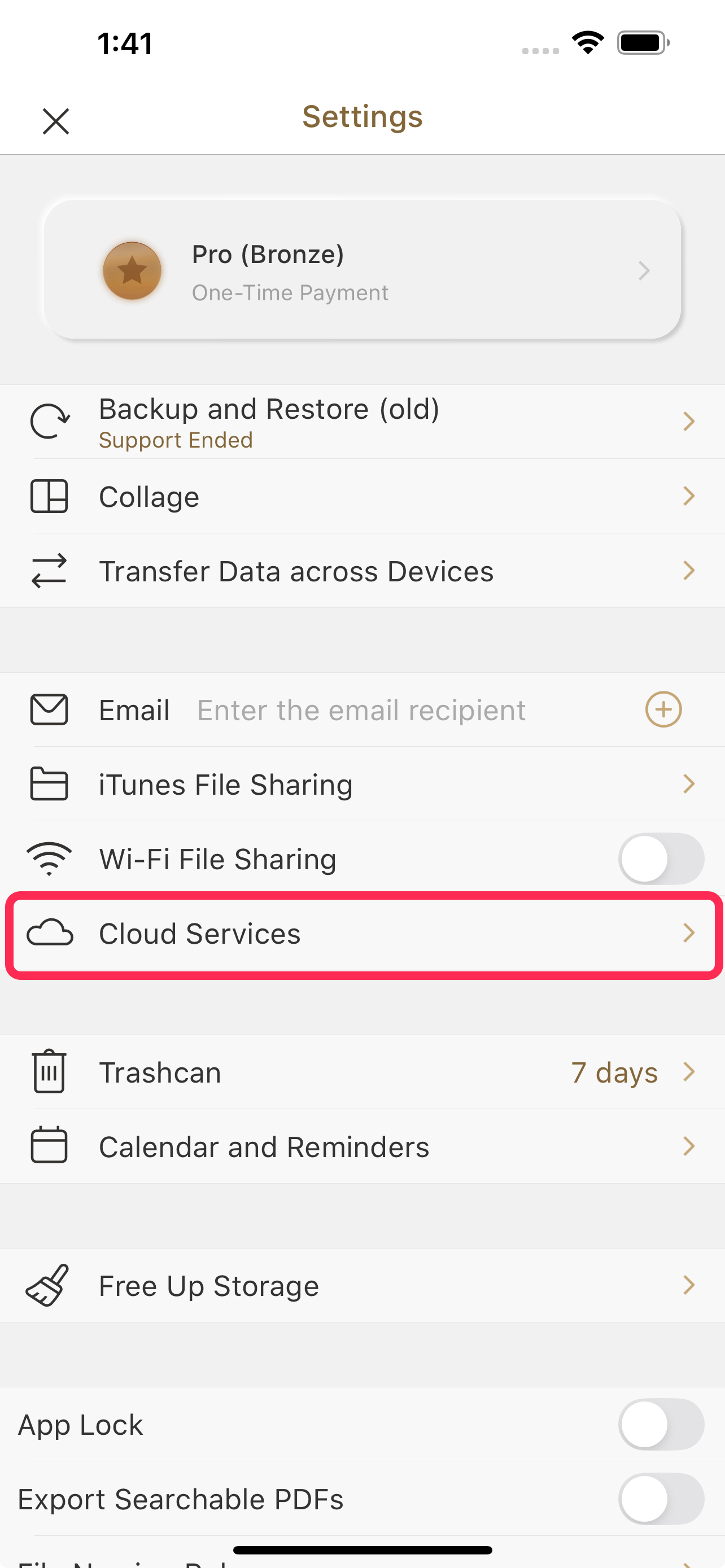
Go to Settings
In DocScan, navigate to Settings > Cloud Service.
-
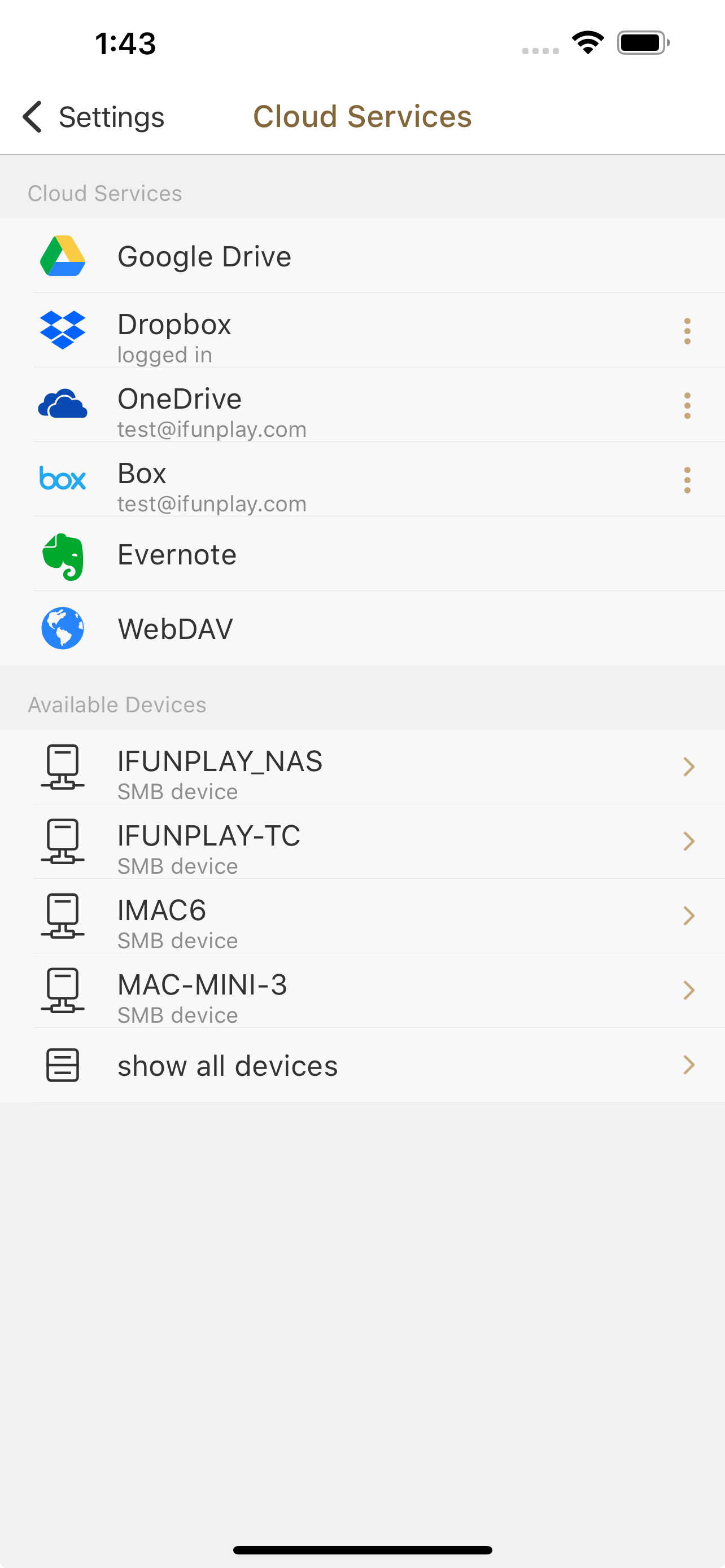
Sign In to a Cloud Service
Choose and log in to your preferred cloud service (Google Drive, OneDrive, Dropbox, Box, WebDAV, SMB, etc.).
-
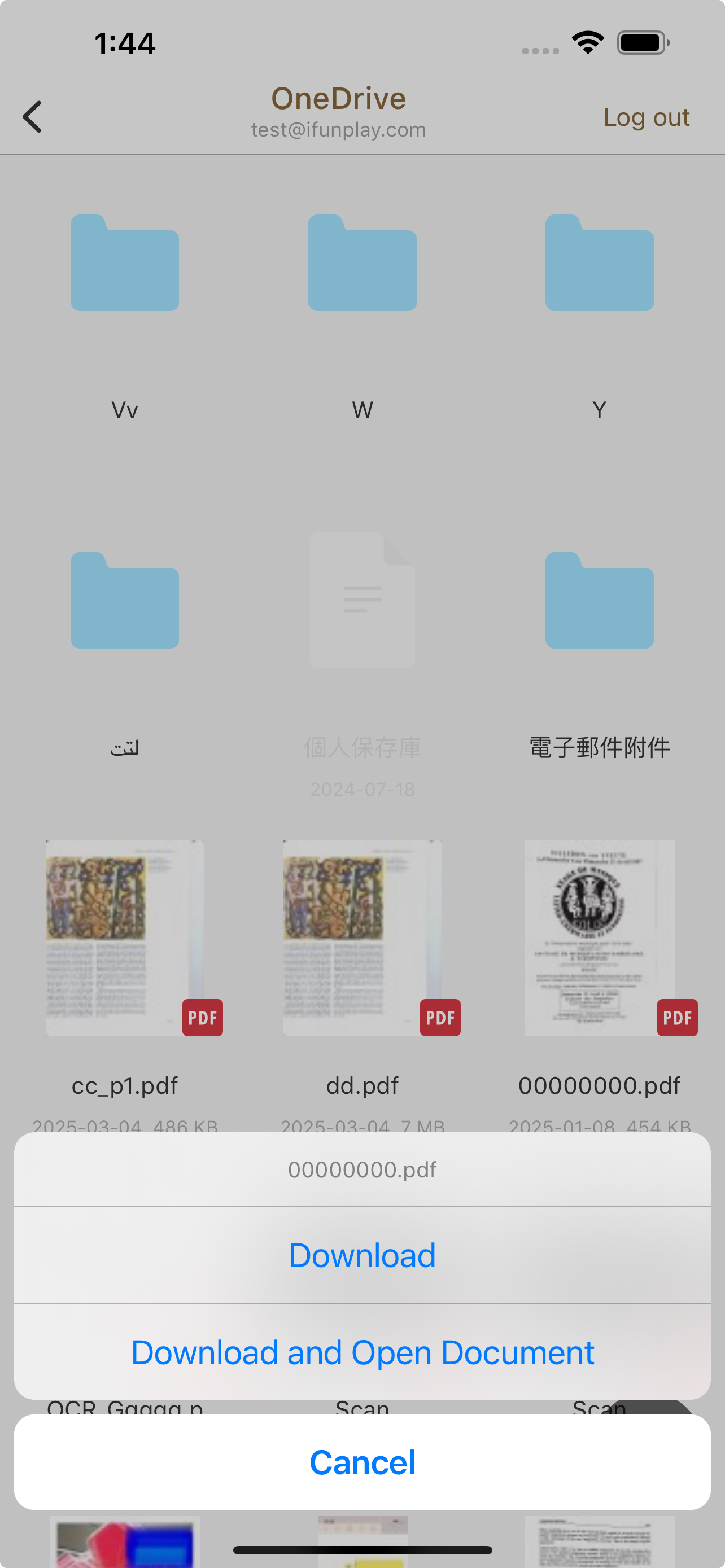
Browse and Import
Browse your cloud files, tap the document you want to import, and it will be downloaded and added to DocScan.
🔸 Method 3: Use the iOS Share Menu
-
Open the File or Image on Your Device
Use the Files app or any cloud storage app to open the image or document you want to import.
-
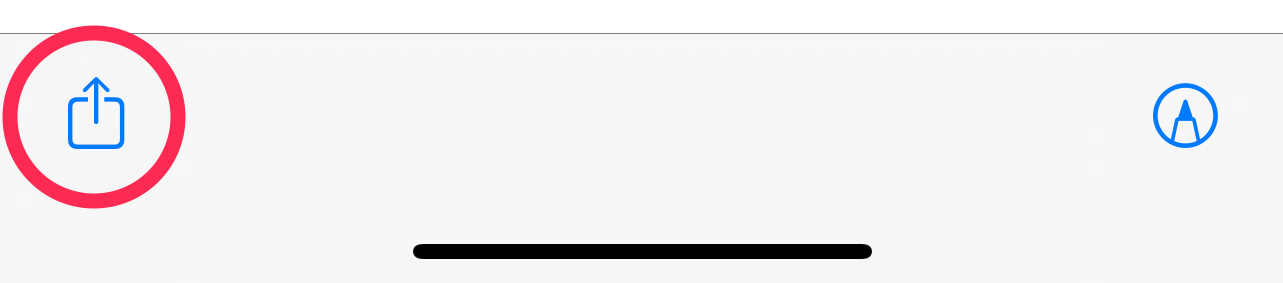
Tap the Share button
-
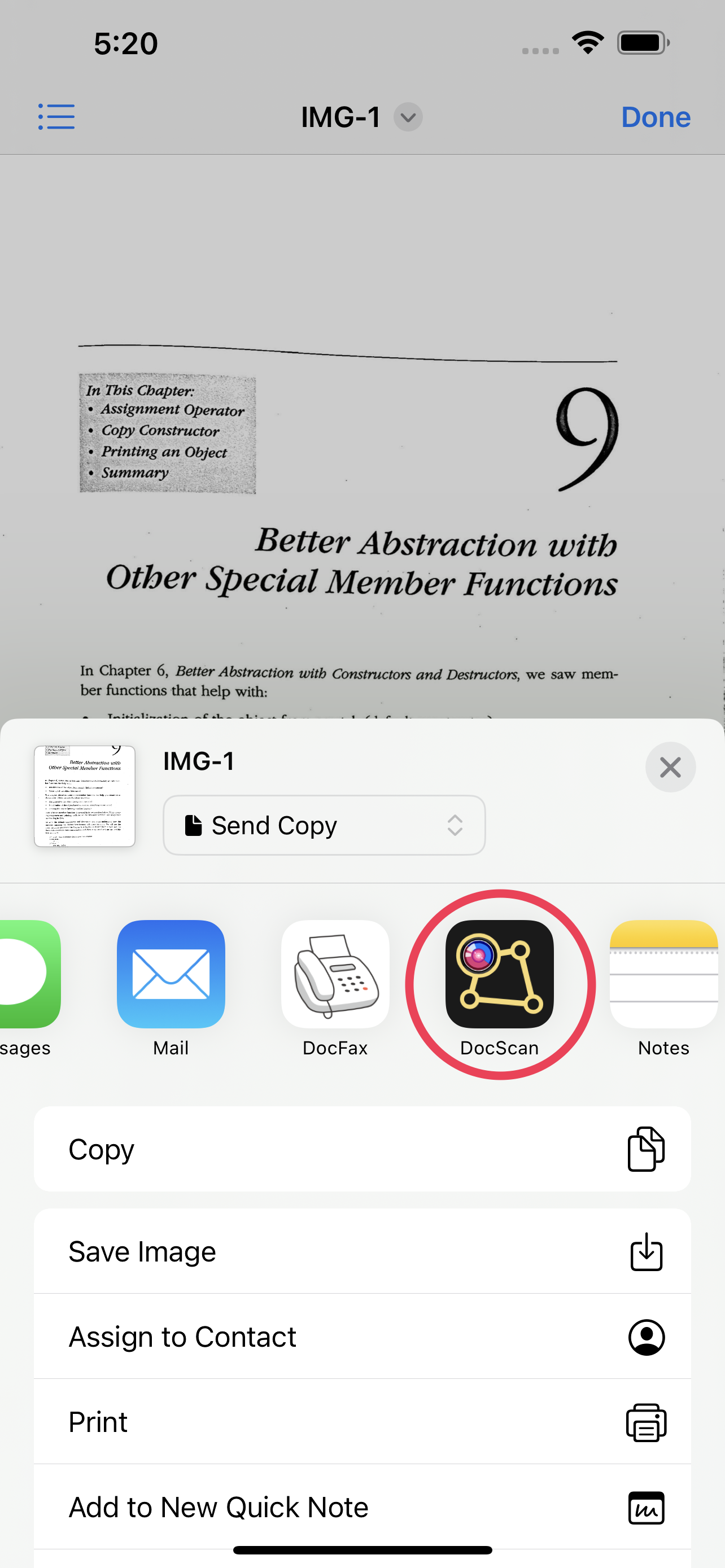
Share to DocScan
In the iOS share menu, select "DocScan".
-
Complete the Import
The file will be imported into DocScan for further editing or scanning.
