
How to Export Business Card Information to Your Contacts?
Tired of manually typing names and phone numbers every time you receive a new business card? With the Business Card Scanning feature, you can automatically extract details from a physical card and save them directly to your app list and iOS Contacts in seconds.
Follow these simple steps to get started:
❶ Start a New Scan
Tap the + button on the home screen to open the scanner.

❷ Select "Business Card" Mode
Once in the camera view, switch to Business Card mode and capture the card. Then, tap the thumbnail in the bottom-right corner to proceed.
💡 Tip: Keep the entire card inside the frame with clear lighting for optimal recognition results.

❸ Review and Edit Information
The app will automatically extract the text and populate key fields (such as Name, Company, Phone, Email, etc.). Check the details, tap Edit if any adjustments are needed, and tap Save when finished.

❹ Export to Contacts
On the action screen, select Export to iOS Contacts (you can also perform quick actions like making a call or sending an email).
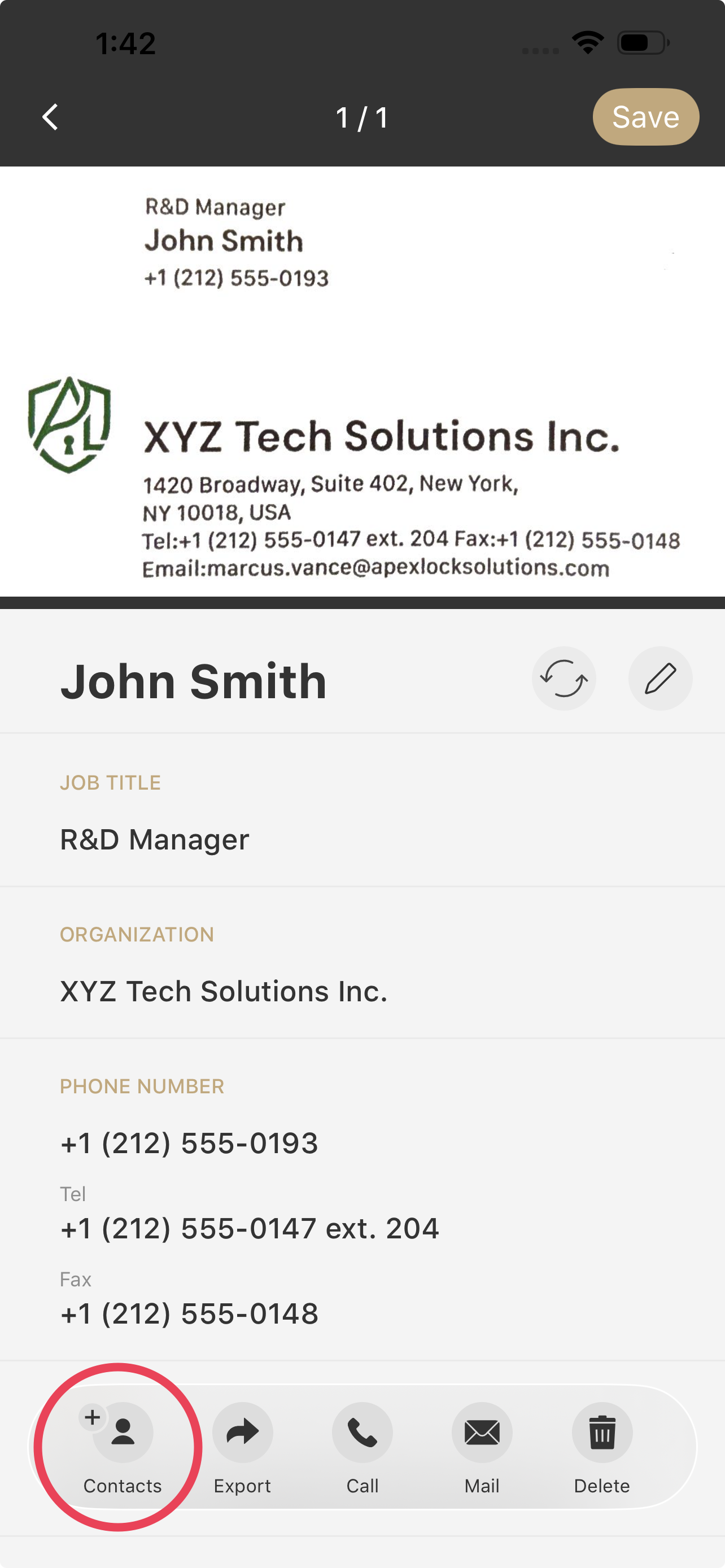
❺ Save Contact
Tap Save in the top-right corner to complete the process and store the contact information.
